TELARIX

Configure access in the Telarix application

Every section of the Settings window and what it lets you change.

1. Connection

  • This computer's display name — how it is labeled on the receiving side.
  • Settings file path: %AppData%\Telarix\client.json.
  • "Forget server certificate" — after reinstalling the server, once its fingerprint changed.
  • Extra server addresses — for networks where the router can't route requests back to its own public IP (NAT loopback); the client picks whichever configured address answers fastest.
2. Trusted computers

  • IDs that may connect to this computer without the "Allow/Deny" dialog.
  • Removing a computer from the list — connecting again will ask for confirmation.

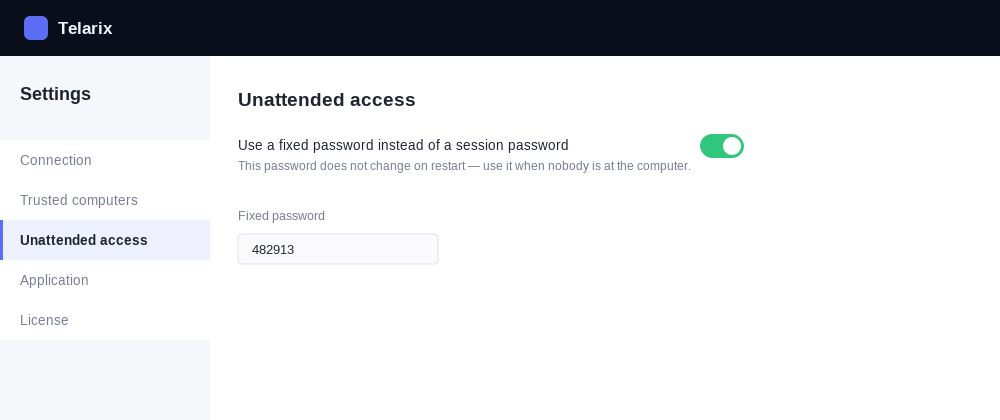
3. Unattended access

  • A switch: use a fixed password instead of the changing "session password".
  • The fixed password field — set it once, it does not change on restart.
The "Unattended access" section: fixed password (illustration with a test value)
Illustration: a fixed password for unattended connections.

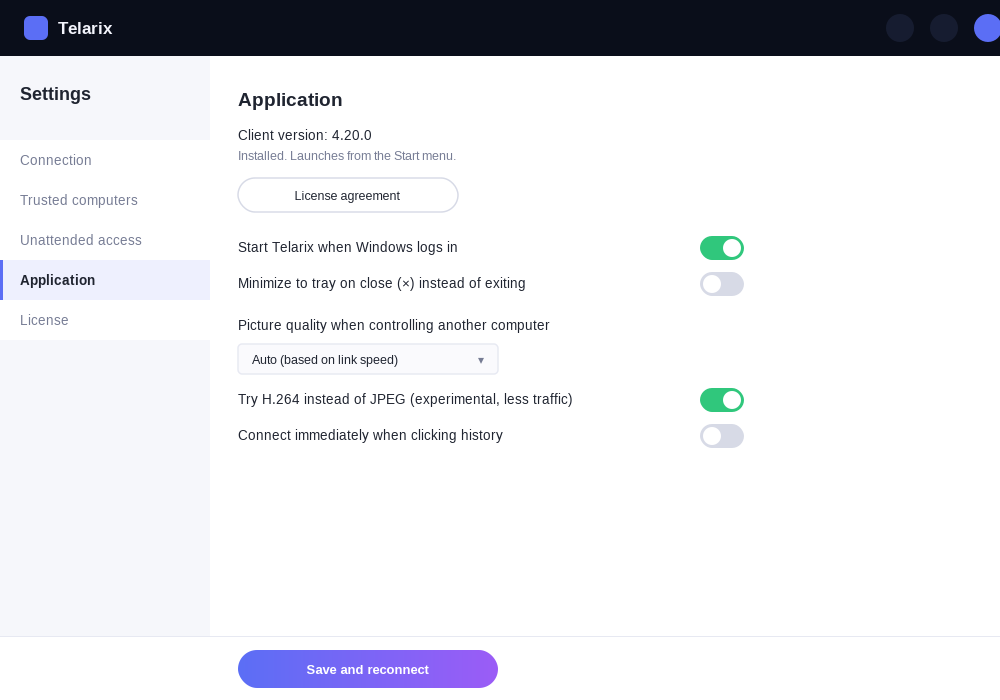
4. Application

  • Client version and install status, a link to the license agreement.
  • Start Telarix automatically when Windows logs in.
  • Minimize to tray on close (×) instead of exiting the app.
  • Picture quality when controlling another computer: auto, high, medium or low.
  • H.264 mode instead of JPEG — experimental, less traffic on video and scrolling.
  • Connect immediately by clicking a computer in history, without a separate "Connect" click.
The "Application" settings section: auto-start, picture quality, H.264, tray (illustration with test values)
Illustration: the "Application" section — auto-start, tray, picture quality and H.264 mode.

5. License

  • Entering and activating a license key.
  • The current plan's status and how long it runs.

Documentation