
Connect to a remote computer with Telarix
How to connect to another computer and start controlling it — on one page.
Step by step
- Download
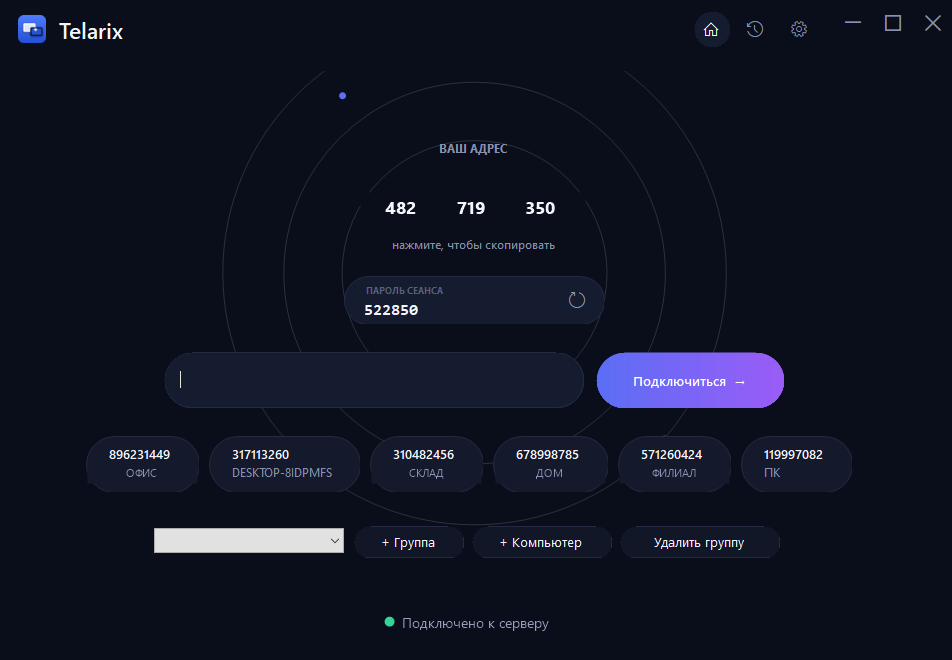
TelarixClient.exeand run it on both computers — no administrator rights needed. - Your own 9-digit ID and a one-time "session password" appear on screen — the password changes on every restart.
- On the other computer, type this computer's ID into the address field and click "Connect".
- Enter the "session password" shown on the screen of the computer you are connecting to.
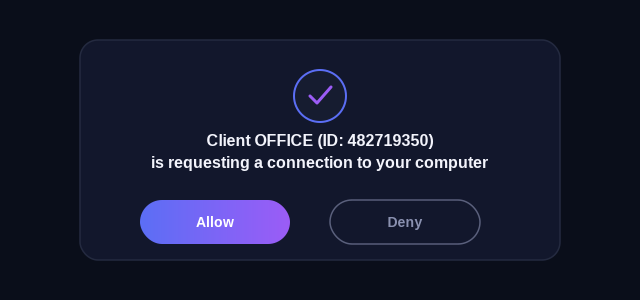
- An "Allow/Deny" dialog appears on the computer being connected to — nothing happens without that consent.
- Done: screen, mouse and keyboard, files and clipboard are all available right away in the viewer window.
Good to know
- Click your own ID to copy it to the clipboard — handy for reading it out or pasting into chat.
- Save repeat connections as a "Computer" or group them — one click, no need to retype the ID.
- To skip typing the session password every time someone connects to you, turn on a fixed password: Settings → "Unattended access".
- If the picture feels slow when controlling another computer, try H.264 in Settings → "Application" (less traffic on video and scrolling).